Set Up Alerts Faster: Duplicate to Another Channel and a Cleaner Form
PingZen alerts have always done the job: a monitor goes down, you get a message. But setting them up had friction. An alert delivers to a single channel and a single recipient — so covering both Telegram and email meant building the same alert twice, by hand. And the form put every setting on screen at once, including the dials most people never touch. We rebuilt it.
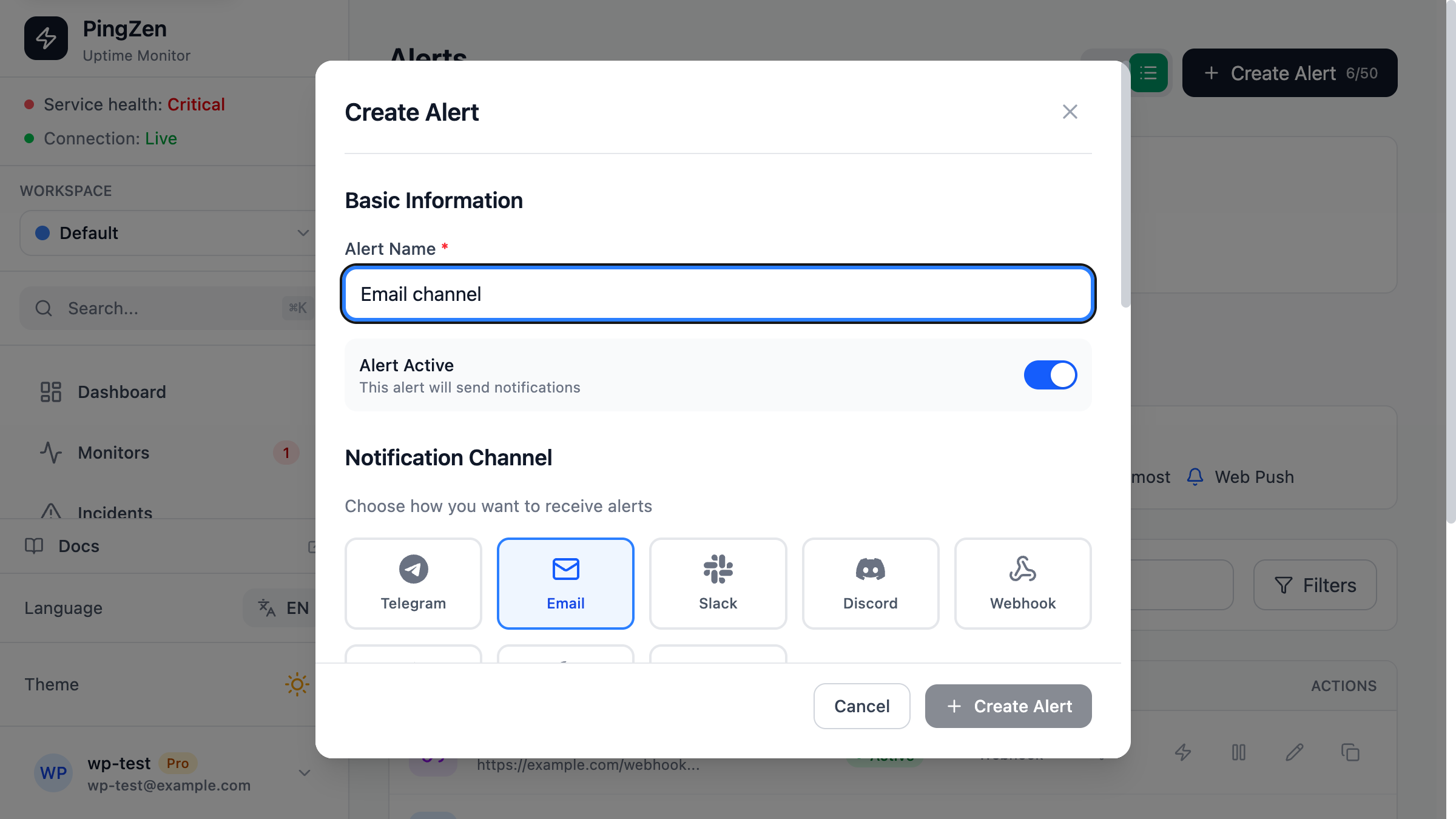
One alert, one channel — duplicate instead of rebuild
Keeping one channel and one recipient per alert is deliberate: routing stays predictable, and a broken target can’t take the rest down with it. What changed is how you cover a second channel. Every alert card and list row now has a Duplicate action, between Edit and Delete.
It opens a new alert pre-filled from the original — the same monitors, triggers, cooldown, reminders and message content. You only pick the new channel and type its recipient. Three small touches make it feel finished:
- It opens on a channel different from the source — it is “duplicate to another channel,” so defaulting to the same one would be pointless.
- It names itself “<source> (copy)”, so the copy is recognizable in the list instead of inheriting a generic name.
- It quietly drops any monitor deleted since the original was created, so the duplicate can’t fail to save on a stale reference.
Mirroring a Telegram alert to email is now: click Duplicate, switch the channel to Email, type the address, Create. Done.
A shorter form: Advanced settings
The default form now asks only for what you actually decide per alert — the channel, the monitors, and which events should notify you. Cooldown, reminders, and message content moved into a single collapsible Advanced settings section at the bottom. Most alerts leave those at their defaults, so they no longer get in the way.
They’re one click away when you need them — and if you edit an alert that already customized one of them, the section opens expanded automatically. Nothing hides behind a fold without telling you.
Triggers that match the monitor
“When to notify” used to list every conceivable event, whether or not the attached monitor could ever fire it. Now it shows only the events a monitor can actually report, grouped by intent:
- Availability — up and down transitions, for every monitor
- Health & performance — degraded state and slow responses
- Certificate — SSL / IMAP expiry
Attach a plain HTTP monitor and you won’t be offered a certificate trigger it can never send. Attach an SSL check and the certificate group appears. Fewer dead options, less second-guessing about which ones do anything.
Where to find it
It’s live in every workspace right now. Open Alerts, create or edit one, and the new layout is there. The step-by-step is in the alerts guide — including the new “Duplicate to another channel” section.